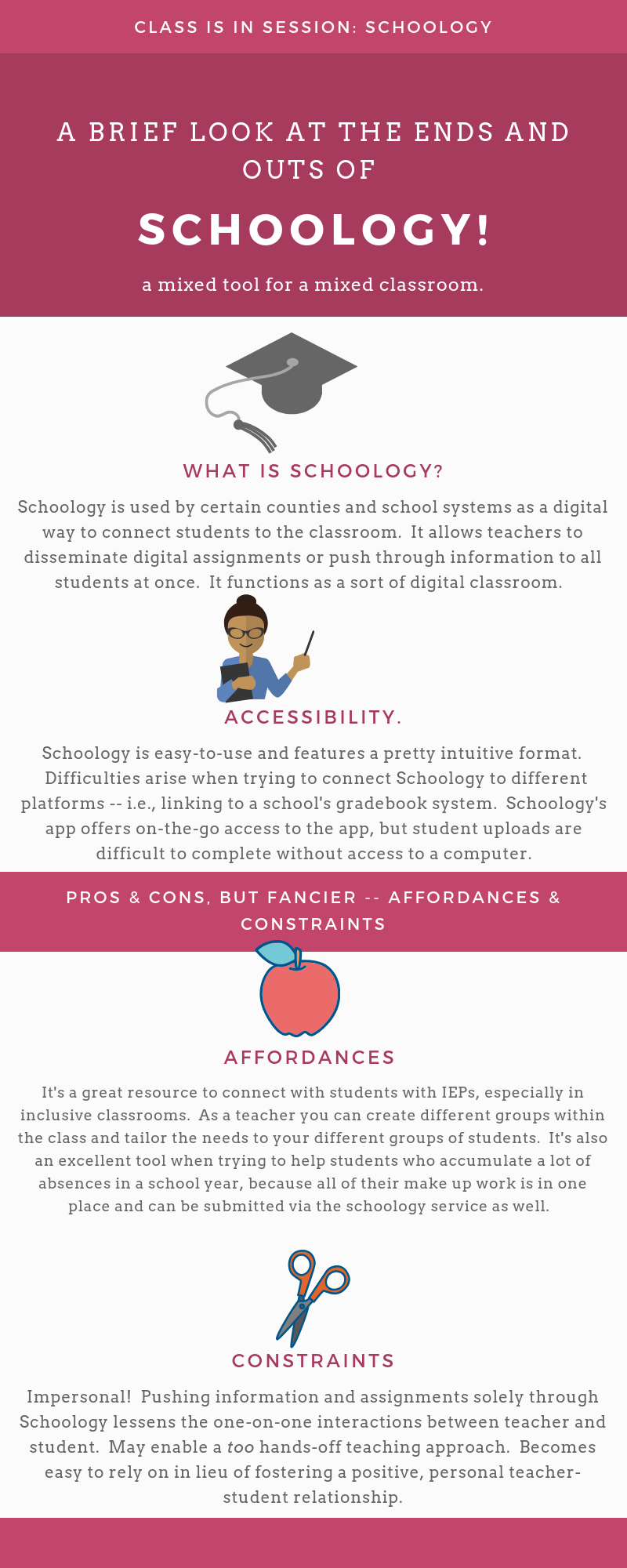
In this product and post, I am attempting to unpack Schoology, and my experiences with Schoology, in a succinct way via a poster created through the free service Canva. I want to focus my reflection on Canva as a tool, but I think it’s important to also expand on the role of Schoology as a medium between teacher and student and reflect on my personal experiences using both Canva and Schoology in my own classroom. In attempting to engage in this analysis for both mediums, I intend to better prepare myself and other teachers to use them in the future.
My poster does a pretty decent job of breaking down what Schoology is, so I don’t want to revisit that just yet. Instead, I’ll focus on Canva for a bit. Canva is a free (mostly, because nothing’s all the way free) service that allows anyone with an email address a way to create splashy posters, infographics, or other visual mediums in a pretty user-friendly way. The website itself is pretty intuitive and offers quite a few ready-made templates.
I chose to use a Canva poster because I’m really fond of the infographic format in particular. I think it’s an effective way to create a polished, professional looking product. As a way to break down Schoology as its own medium, I thought Canva let me convey a lot of information in an easily comprehensible way. It affords me the opportunity to quickly and effectively give essential information, in that it forces me to be succinct. There isn’t a lot of room for the rambling that I’m doing now.
However, Canva comes with its own constraints — that forced succinctness is part of it. There’s not a lot of room, and so I felt like I didn’t adequately explain parts of the Schoology experience. Below are some of the musings about Schoology that I wanted to convey via Canva but had a hard time executing.
Schoology is a great tool, but it’s easy for students and teachers to become entirely reliant on it. Students, knowing that all information will be available to them via Schoology, don’t feel any pressure to actually listen to directions being given in class. Teachers can get frustrated easily by student questions because “it’s on Schoology.” In general, I like the tool as a way to make information and assignments available to students who need them, and it certainly helped me differentiate for students with IEPs and 504 plans, but I think it creates a disconnect in the teacher/student relationship when not used with serious discretion and consideration.
Now, Canva in the classroom is generally a pretty successful tool, I think! In the past, I’ve tried to assign projects that had some sort of creative element, but I found that a lot of my more traditionally-minded students (the ones that seem to prefer writing a paper to creative work, for some reason) balk at the idea of having to create anything visual. I chalk some of that resistance up to perfectionism — why create a product they aren’t happy with? I, too, amd struggling with that when it comes to using technology meaningfully, so I get it.
Canva, however, makes it a lot easier for less artistically-inclined students to create visual representations. Like I mentioned earlier, Canva lets students (and teachers) create professional looking products with only a little know-how. An infographic like the one above could easily be used by students to convey character tracking over the course of a novel study, for example.
I especially like considering Canva as a way to embody Jones’ assertion that technology has the “capacity to change the way we experience and think about reality.” I don’t want to be too dramatic and say that Canva is going to change anyone forever, but Canva does force brevity by its nature. Asking students to take a lot of information and boil it down to its bare essentials is, in a way, asking them to alter the way they think and express that in a new, creative way!
Parting Thoughts!
- If you’re using Canva in the classroom, make sure you very clearly show student how to navigate free v. for-pay elements of the website. I’ve had students utilize Canva for a project and then struggle to ‘fix’ the project when they realized that many of the elements they used required them to pay some sort of fee. It was a mess.
- Teachers — do you have any advice on how to create holistic grading guides for more creatively inclined works like this? I personally struggle with this, because I think part of the magic of a creative project is that students don’t need to follow a bulleted list, but then how do you assign a letter grade? That’s not even a Canva specific question, but it’s one that crossed my mind when creating my above artifact?
- On the topic of Schoology, I wouldn’t recommend using Schoology submissions for major projects. Too much room for technological errors and difficult to leave meaningful feedback that students will actually interact with!
Jones, R. H., & Hafner, C. A. (2012). Understanding Digital Literacies: A Practical Introduction. Taylor and Francis.
 Emerging Technological Literacy for the Literary Teacher